This guide takes a new administrator from an empty host to a verified first
request, then gives every user a clear map for discovery, seasons, Activity,
Library, and common recovery. Detailed runbooks remain one click away in the
Wiki.
Configure one complete movie or TV path first.
Recommendations, watch history, notifications, and the other media
type can wait. YouTube is an optional, independent library path.
01
Install
Use the Docker setup builder to map media and staging
drives, then start Compose.
02
Create the administrator
Use the printed one-time bootstrap token to create the first
administrator. Nooklet automatically closes
/bootstrap as soon as an administrator exists
and refuses later bootstrap attempts; continue in Setup
Center.
03
Verify metadata + acquisition
For Movie/TV requests, test TMDB, one Newznab indexer, and
the built-in downloader's Usenet connection. YouTube does
not require those services.
04
Attach storage
Use container-visible paths for final destinations;
completed download staging is separate Usenet output.
05
Confirm readiness
Setup Center must show the intended media path and
background worker as ready.
06
Request something small
Follow it through Activity until the final file is visible
in Library.
Ready means verified, not merely saved
One complete movie or TV request path needs all six checks.
✓ TMDB is verified.
✓ The built-in downloader's
Usenet connection is verified.
✓ An enabled, verified Newznab
indexer covers the media type.
✓ The final destination is
reachable and writable.
✓ Native staging is writable
with positive capacity when used.
✓ The background worker is
responsive and not degraded.
Step 1
Prepare Docker and choose one setup route.
Docker is the recommended route. For a new installation, use the
setup builder below. It verifies the prerequisites, folders,
generated configuration, startup, and health instead of asking you
to assemble those steps by hand.
Have these ready before you start
Start Docker's Linux engine and have Git, at least one existing
media folder, a separate existing completed-download staging folder,
and enough free space in Docker's data storage. TMDB, Newznab, and
Usenet credentials are needed later in Setup Center for Movie/TV
requests, not to start the container. YouTube is optional and does
not require those credentials.
Recommended
Let the setup builder verify the installation.
Choose your operating system and existing folders below. The
generated private command creates the configuration, checks
every mount, builds the images, and waits for Nooklet to become
healthy.
The complete runbook separates Windows, Linux, and macOS; shows
the full environment and mount files; and defines the exact
healthy response before first login.
Configure the path on the right side of each mount.
Nooklet runs inside the container. It cannot use
F:\… directly. If the host staging folder is
mounted at /downloads, set
DOWNLOAD_ENGINE_DIR beneath
/downloads.
Pick the operating system that runs Docker, add at least one
existing final library folder for Movies, TV, or YouTube, and choose
a separate existing folder for completed Usenet downloads awaiting
import. A YouTube row maps to the final library target
/media/youtube; its /app/data/youtube path
is temporary work storage. Nooklet generates everything needed for a
new install: the repository, private environment, drive mounts,
container build, writable-mount check, startup, and health check.
In-flight download, repair, and extraction work uses Docker's data
volume, which must also have enough free space.
Start Docker first
On Windows or macOS, open Docker Desktop and wait for its Linux
engine; on Linux, start the Docker daemon. The generated command
checks Docker and your host folders before cloning or creating
files.
Ready to install
Paste this command. Nooklet verifies the result.
Open PowerShell on Windows or Terminal on Linux/macOS in
the parent folder where you want Nooklet installed. Safe
to re-run: if a setup attempt fails partway, paste this
command (or a freshly generated one) again and it picks
up where things left off. An existing install's secrets
are always kept, never overwritten.
Keep this command private.
It contains newly generated secrets and may remain in your
clipboard and shell history. The terminal prints your
one-time bootstrap token after startup. Use it to create the
first administrator. Nooklet automatically closes
/bootstrap as soon as an administrator exists
and refuses later bootstrap attempts; continue in Setup
Center.
Step 2
Let Setup Center prove the complete path.
Saving a credential or folder is not the same as being ready. Return
to Setup Center after each configuration step and look for a
verified, writable, capacity-aware path.
01
Create the first administrator
Enter the printed one-time bootstrap token, a valid email,
display name, and strong password. Nooklet automatically closes
/bootstrap as soon as an administrator exists and
refuses later bootstrap attempts.
02
Verify TMDB
Open Settings → Connections, test the
credential, and confirm Verified.
03
Verify downloading
Configure and verify a TLS Usenet server for the built-in
downloader.
04
Add Newznab
Enable the provider, select Movies and/or TV categories, then
use Test & add.
05
Attach a destination
In Settings → Storage, choose a container path
inside an approved root and verify write access.
06
Check the worker
Open Health & readiness. The background
worker must be responsive and non-degraded.
Newznab only
Automatic acquisition does not support Torznab or torrent transport.
If no compatible Newznab source is enabled, Nooklet stops with a
setup action instead of choosing an unusable release.
Find a title, choose the scope, follow the outcome.
Search and Discover enter the same request workflow. Recommendations
are another doorway—not a different acquisition system.
Movie
Request one title.
Open Search or Discover.
Open the movie and confirm the identity.
Choose the final movie destination.
Review the matching release and submit.
Open Activity and wait for import.
TV
Choose season or episodes.
Open the series and select the intended season.
Keep the full season or narrow to episodes.
Confirm the TV destination and request.
Follow the grouped season plan in Activity.
Confirm imported episodes in Library.
Availability means imported
An NZB in a queue is active work, not an available title. Nooklet
confirms availability after processing, safe import, and library
observation of the final media file.
Using personal recommendations
After an administrator verifies an OpenAI-compatible provider,
open Movie ideas or TV ideas.
Add a prompt or genres, optionally use watch-history context,
and like, dislike, or open a suggestion.
Past picks keeps generated batches;
Your taste shows the signals shaping later
ideas.
AI is optional. You can always search and request a known title
without it.
TV request resilience
A failed pack does not mean a failed season.
The season plan is the durable outcome. Pack and episode downloads
are inspectable attempts inside it.
Recovering
Automatic work remains.
Nooklet may be trying another compatible pack, waiting for
active capacity, switching to missing aired episodes, or
rechecking an unavailable episode. Automatic recovery continues,
and Library Search can retry one eligible episode immediately.
Blocked
A shared boundary needs repair.
Follow the displayed storage, destination, downloader,
credential, or indexer action. Fix that condition, then choose
Resume season recovery.
Completed
Required coverage is present.
Eligible monitored episodes are now represented in the library.
Future or unmonitored episodes can remain outside this plan.
1
Complete-season pack first
Search and try a matching release.
2
Alternate compatible packs
A pass may probe eight candidates, while only three releases
submitted to the downloader consume the pack budget.
3
Individual-episode fallback
No usable pack, exhausted packs, or incomplete imported
coverage moves to missing aired episodes automatically.
4
Preserve progress
Owned files and compatible active work are reused;
unavailable episodes keep their own retry schedule.
Restart behavior
The season plan, queue intent, attempts, and retry timing survive a
process restart. An interrupted native transfer currently restarts
from the stored NZB; byte-level transfer resume is not implemented.
Import publishing separately retains the engine-owned source and
safely recovers an exactly claimed partial cross-filesystem copy.
Start with the group status and message before acting on a child
attempt. A red child release inside a Recovering season can simply
be evidence that the coordinator already moved on.
Active
Work is moving or waiting normally.
Search, queue, transfer, processing, import, or automatic
recovery is still eligible.
Needs attention
The next action belongs to you.
Read the bounded failure message, repair the named boundary, and
use the offered retry or resume action.
Completed
The request reached a terminal outcome.
Search history to confirm success, cancellation, or a final
failure and its recorded reason.
Refresh Activity before retrying a queue-control conflict; the item
may have entered repair or extraction.
Pause is observed between segment operations, not midway through a
filesystem write.
Repair and extraction cannot be safely cancelled after they begin.
One native release runs globally at a time; segments inside that
release can transfer concurrently.
Organize and reconcile
Keep Library grounded in real files.
Library folders, title records, requests, and media files are
separate on purpose. Scans reconcile the configured filesystem with
Nooklet’s understanding of what is actually available.
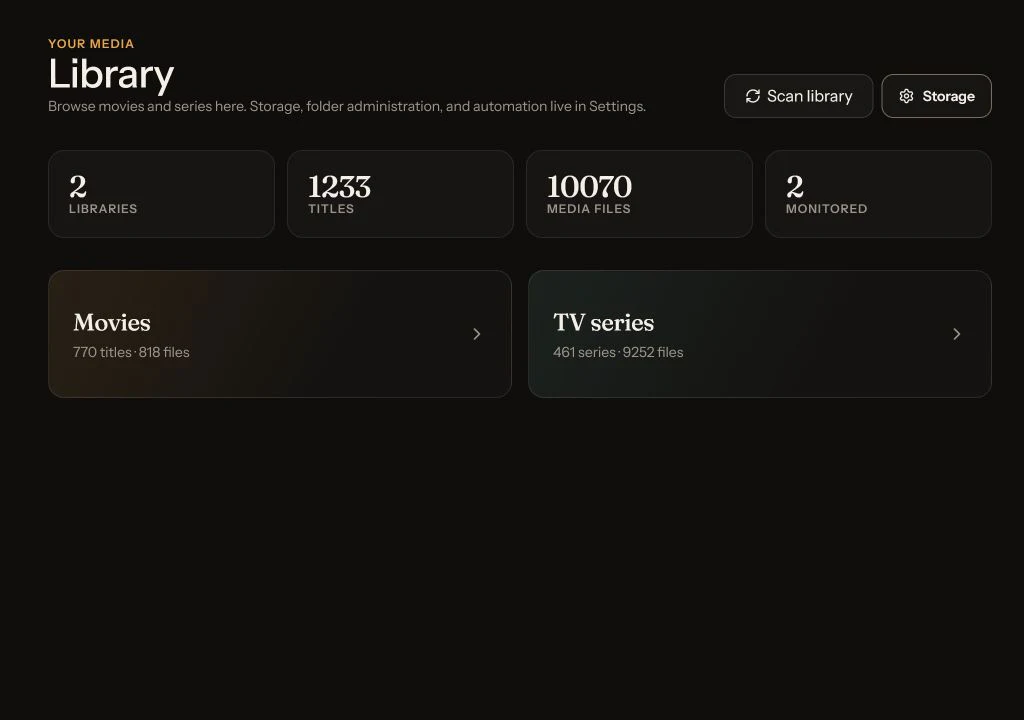
Browse Movies or TV, search titles, filter monitoring and
availability, and open a title to request more or adjust its
monitoring behavior.
After an external move
Run a library scan after another tool moves files. Confirm that the
destination still resolves inside Nooklet and remains readable;
imports additionally require write access.
Shared instance map
Personal choices stay personal. Infrastructure stays administered.
Every user
Personal experience
Account, preferences, request history, recommendation feedback,
personal history sources, and personal notification preferences
where shown.
Administrator
Instance infrastructure
Connections, indexers, storage, downloader, automation, Health
& readiness, and managed user access. Every administrator
views and updates the same canonical instance records.
The most common storage surprise
“My media drive has room. Why does Nooklet say it doesn’t?”
The built-in engine checks both
DOWNLOAD_ENGINE_WORK_DIR and
DOWNLOAD_ENGINE_DIR. The first holds in-flight, repair,
and extraction work; the second holds completed output awaiting
import. The more constrained filesystem limits admission.
Check this firstSettings → Storage → Download workspace
Read both configured and effective paths, their underlying
filesystems, active reservation, and estimated capacity for new
work.
Identify whether the work or completed-output filesystem is the
limiting location.
Confirm completed staging is beneath the intended container
mount, such as /downloads/nooklet-engine.
Confirm the spacious host folder is actually bound to
/downloads.
Review active downloads, because they reserve transfer and
post-processing capacity.
Confirm the container user can write to staging.
If an environment or mount value changed, recreate the container
and recheck Storage.
Apply mount or environment changes
docker compose up -d --build --force-recreate
docker compose ps
A plain restart reuses the previous environment and mount
specification.
Do not move or delete data blindly
Never use docker compose down -v as a troubleshooting
step. It deletes the persistent database volume. Do not delete
SQLite, WAL, or SHM files while the app is running.
Symptom-first troubleshooting
Start at the boundary that actually failed.
Try a failed page once more, then use Health, Activity, Storage, and
bounded logs to identify the failing layer. Keep any displayed
reference number with your reproduction notes.
PageNooklet could not load this page
Try again once. If it repeats, open
Health & readiness, keep the displayed
reference, and inspect a bounded app-log window.
If the group says Recovering, Nooklet is
continuing automatically; expand its episode details or use
Library Search to retry one eligible episode. If it says
Blocked, repair the named boundary and
choose Resume season recovery.
ConnectionPlex, Tautulli, or local AI cannot
connect
Address the service from inside Docker—container
localhost is not the host. Allowlist the exact
private hostname or IP, then recreate when environment
values changed.
HealthThe health probe says degraded or returns 503
The public probe returns component status only: HTTP 200
with degraded means the worker is responsive
but work needs attention; HTTP 503 means the database is
unavailable or the worker is stale. Sign in to Health for
timestamps, stages, and private error detail.
Nooklet’s SQLite database contains users, settings, requests,
history, jobs, and audit events. Application updates and database
state must be treated as one recovery pair.
Before an update
Verify health and create an off-host backup.
Record the current Git revision, create a verified database
copy, and move it off the Docker volume.
Apply the update
Pull forward and rebuild deliberately.
Use a fast-forward-only pull, rebuild Compose, then read startup
and migration logs.
After an update
Verify more than process startup.
Check /api/health, sign in, inspect representative
state, and exercise one workflow.
The guide gets you oriented. The Wiki carries the operational detail.
Use the full Wiki for platform-specific installation, every configuration field,
restore rehearsal, account recovery, advanced networking, API contracts, and
contributor documentation.